Adobe Creative Cloud — Free for Students
Tama Art University has an institutional agreement with Adobe, under which enrolled students may use the full version of Adobe Creative Cloud on their personal computers at no cost.
Terms of Service
| Who Can Use Creative Cloud | Undergraduate and graduate students *Note: Research students and exchange students are excluded.* |
|---|---|
| Usage Period | While enrolled *Note: Access is limited to one device at a time, but you may switch devices as needed.* |
| Included Applications | All applications in the Creative Cloud All Apps plan Notes: - Adobe Stock and Adobe Firefly are excluded; only free-tier features are available. - Generative AI features equivalent to the Creative Cloud Pro are not available |
For system requirements, please refer to the link below
How to Get Started
1. Activate your Adobe Account
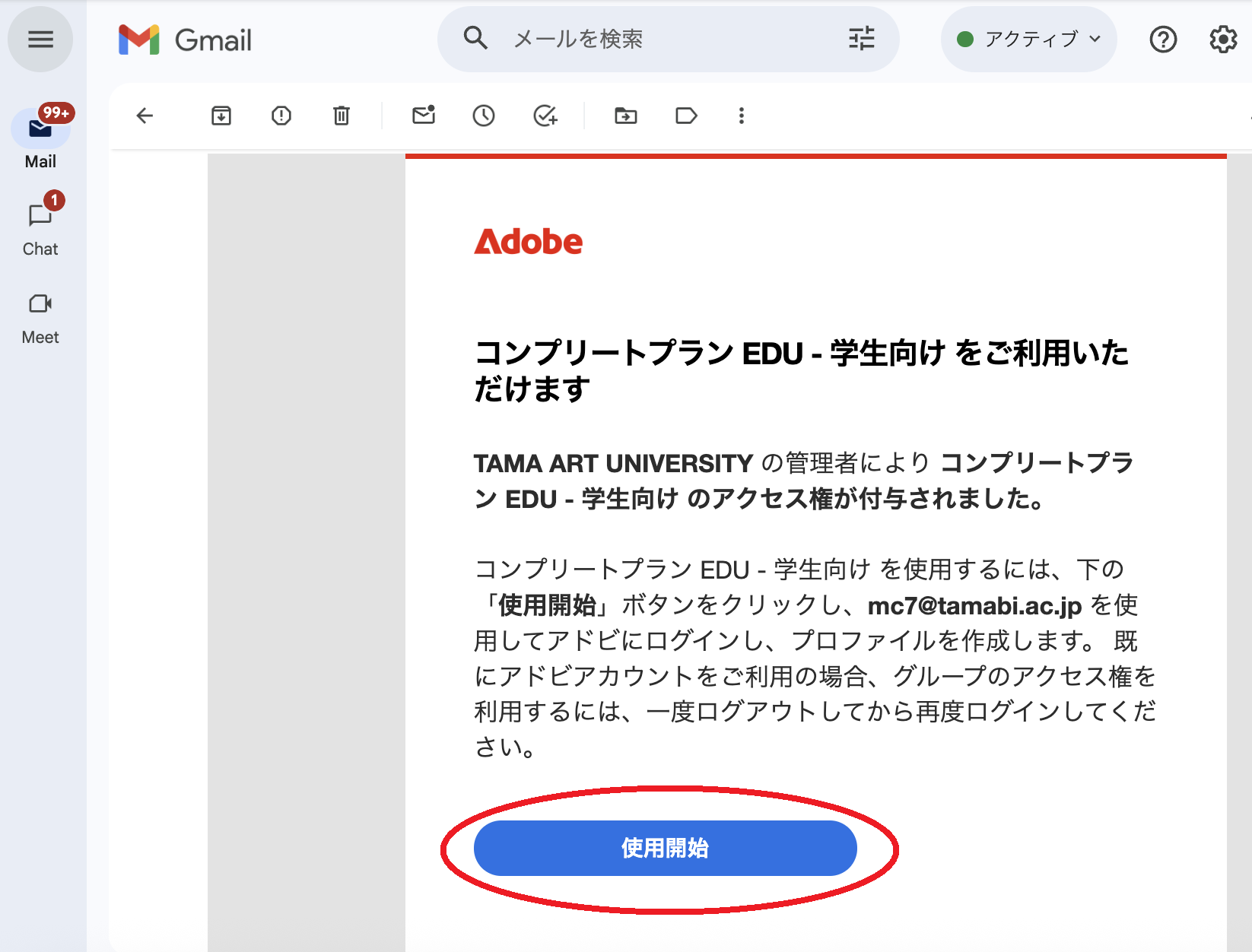
1. Check your university email account ([student ID]@stdt.tamabi.ac.jp) for an email titled “All Apps plan is available,” and click “Get Started.”
*Note: The email is written in Japanese.*
If you do not find it, go to the Adobe login page and set a password using your university email.
If prompted to select an account, choose “Company or School Account” (not “Personal Account”).
*Note: Do not use the “Continue with Google” button.*
Please refer to Google Workspace (formerly G Suite) for Education for more information.
*Note: The page is available in Japanese.*
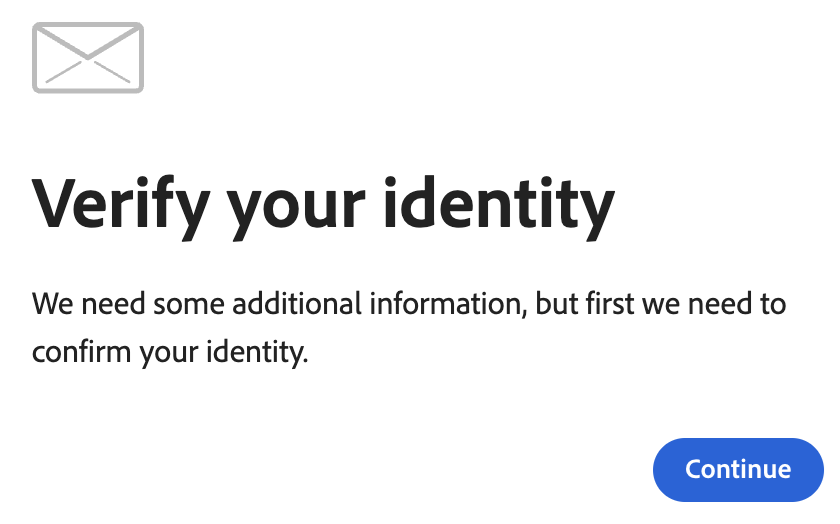
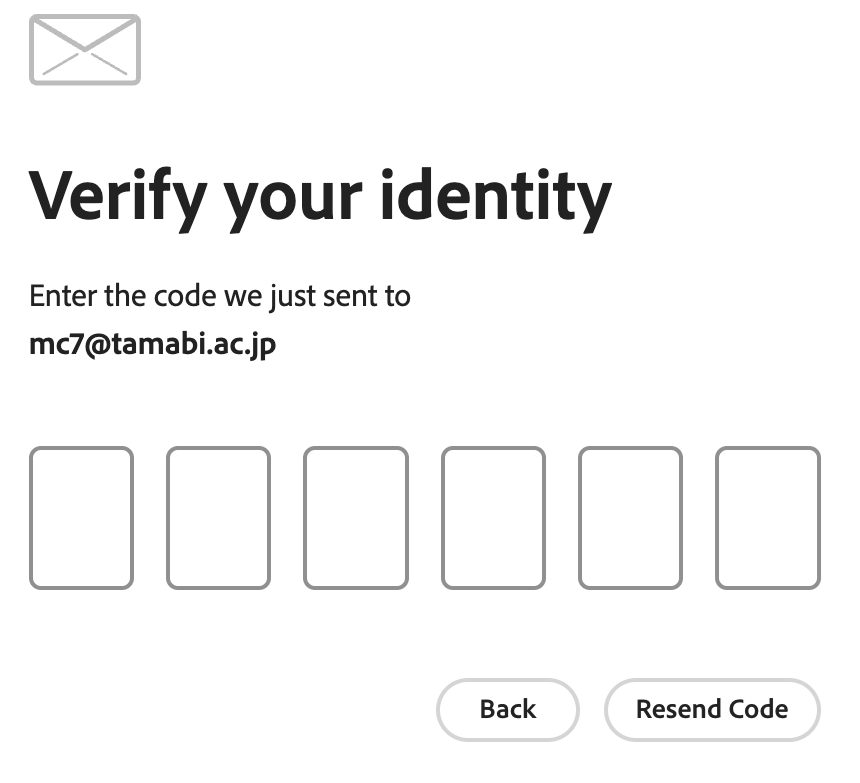
2. After clicking “Get Started” in Step 1, a verification code entry screen will appear. The code will be sent to your university email address, so please enter the code shown in the email. After the verification is complete, proceed to set your password.
*Note: The verification code screen and the email may appear in Japanese.*
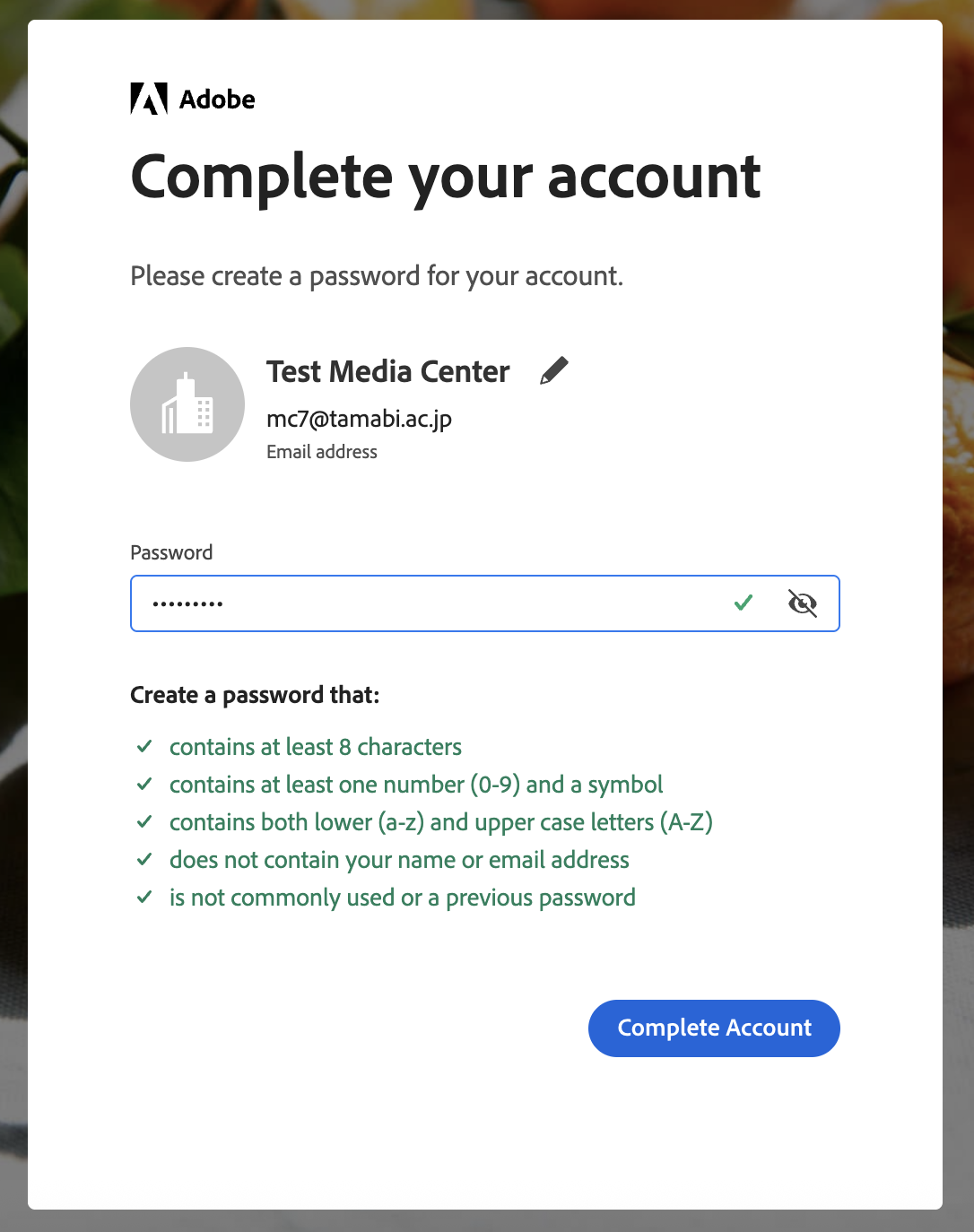
3. Set a password that meets the requirements, then click “Complete Account.”
Notes:
- The password setup screen may appear in Japanese.
- Please make sure your password meets the following requirements:
• contains at least 8 characters
• contains at least one number (0–9) and one special character (such as !, @, #, or $)
• contains both lower (a–z) and upper case letters (A–Z)
• does not contain your name or email address
• is not commonly used or a previous password
4. Once you have finished setting your password, you can start using Adobe CC with this ID (your Google Workspace for Education email address) and the password you set.
*Note: You may be asked to register a backup email address, but this is not required.*
If you are using Adobe CC in an on-campus computer room, you have completed all the required steps.
If you would like to install Adobe CC on your personal computer, please proceed to the next step.
2. Install the Creative Cloud app
With your “Company or School Account”, you will never be asked to enter credit card information.
If you are prompted to do so, it means you are accidentally logged in with a “Personal Account.”
Do not enter any information; please log in again using your “Company or School Account”.
1. Open the “Adobe Creative Cloud” page on your computer.
If you see a download option for “Creative Cloud Desktop” at the bottom of the screen, click it.

If the install option does not appear, click the circular icon in the upper-right corner of the screen, then select “Install Creative Cloud Desktop” from the menu.
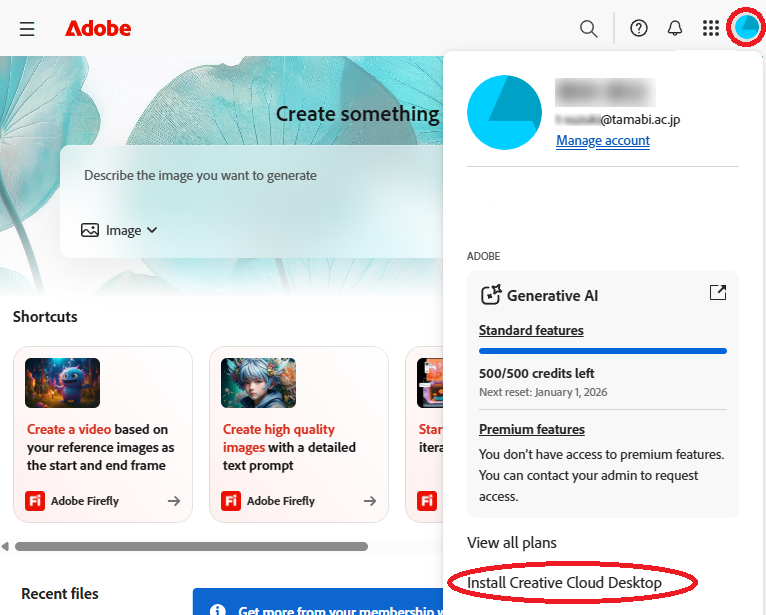
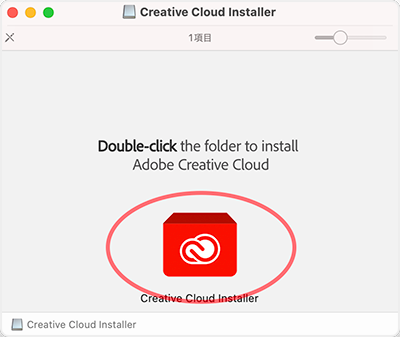
2. Run the downloaded installer (double-click to open).
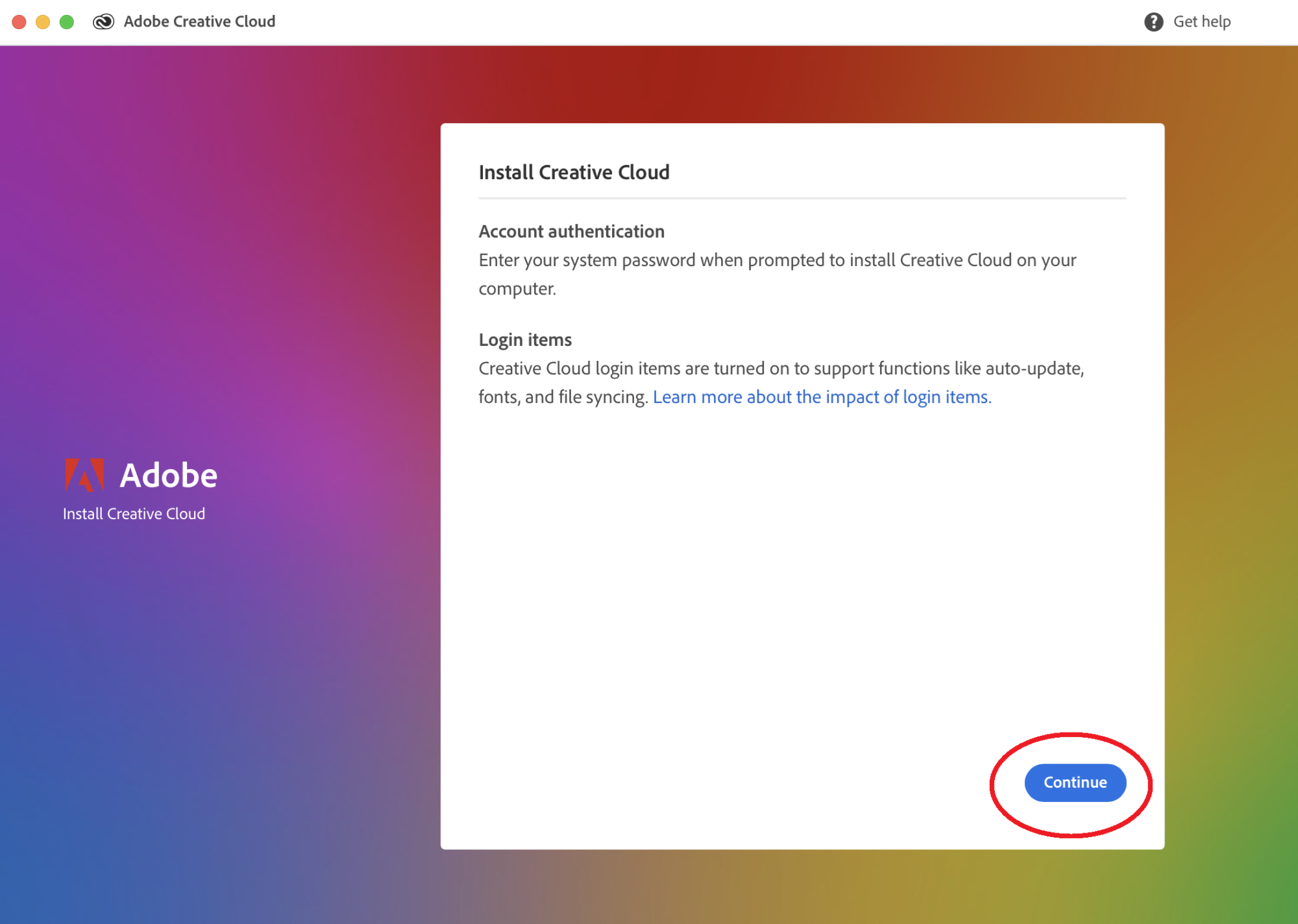
3. Click “Continue” to begin the installation. You may be asked to enter your computer’s password (the same one you use when logging in to your computer).
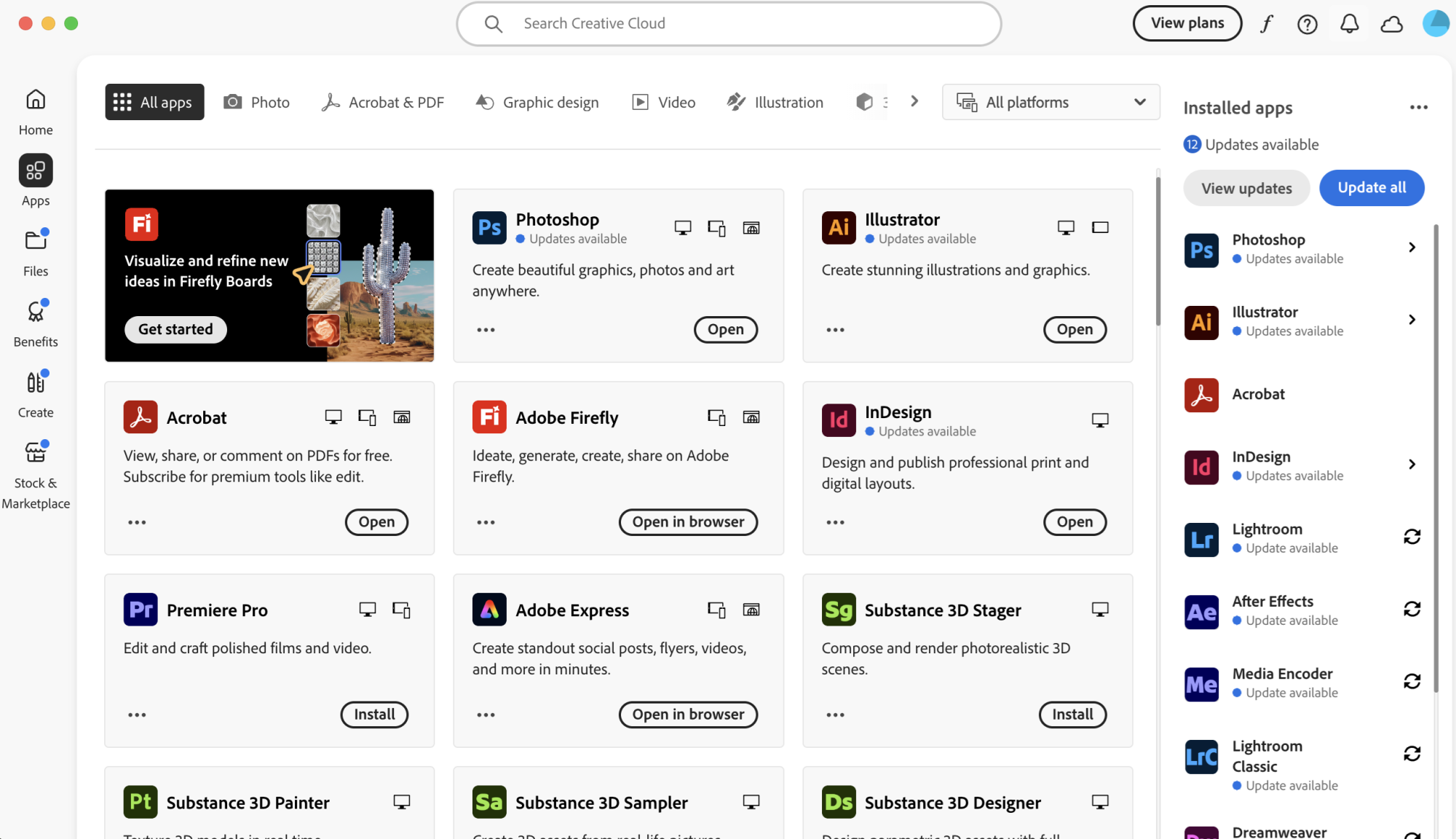
4. Once the installation is complete, the Creative Cloud desktop app will open. You can use this app to install, update, and manage applications such as Photoshop and Illustrator.
3. Installing the Applications You Want to Use
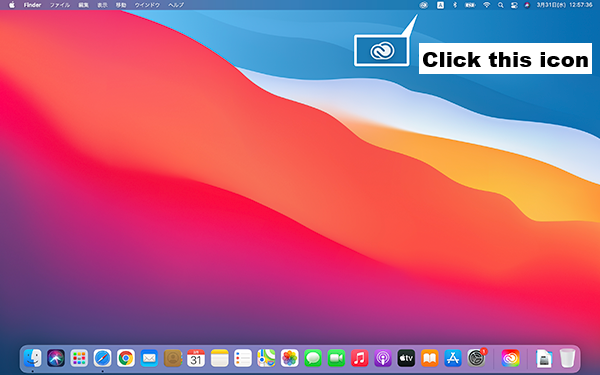
1. Click the Adobe Creative Cloud icon (located in the menu bar on macOS, or in the taskbar at the bottom right on Windows) to open the Creative Cloud app (Creative Cloud desktop application).
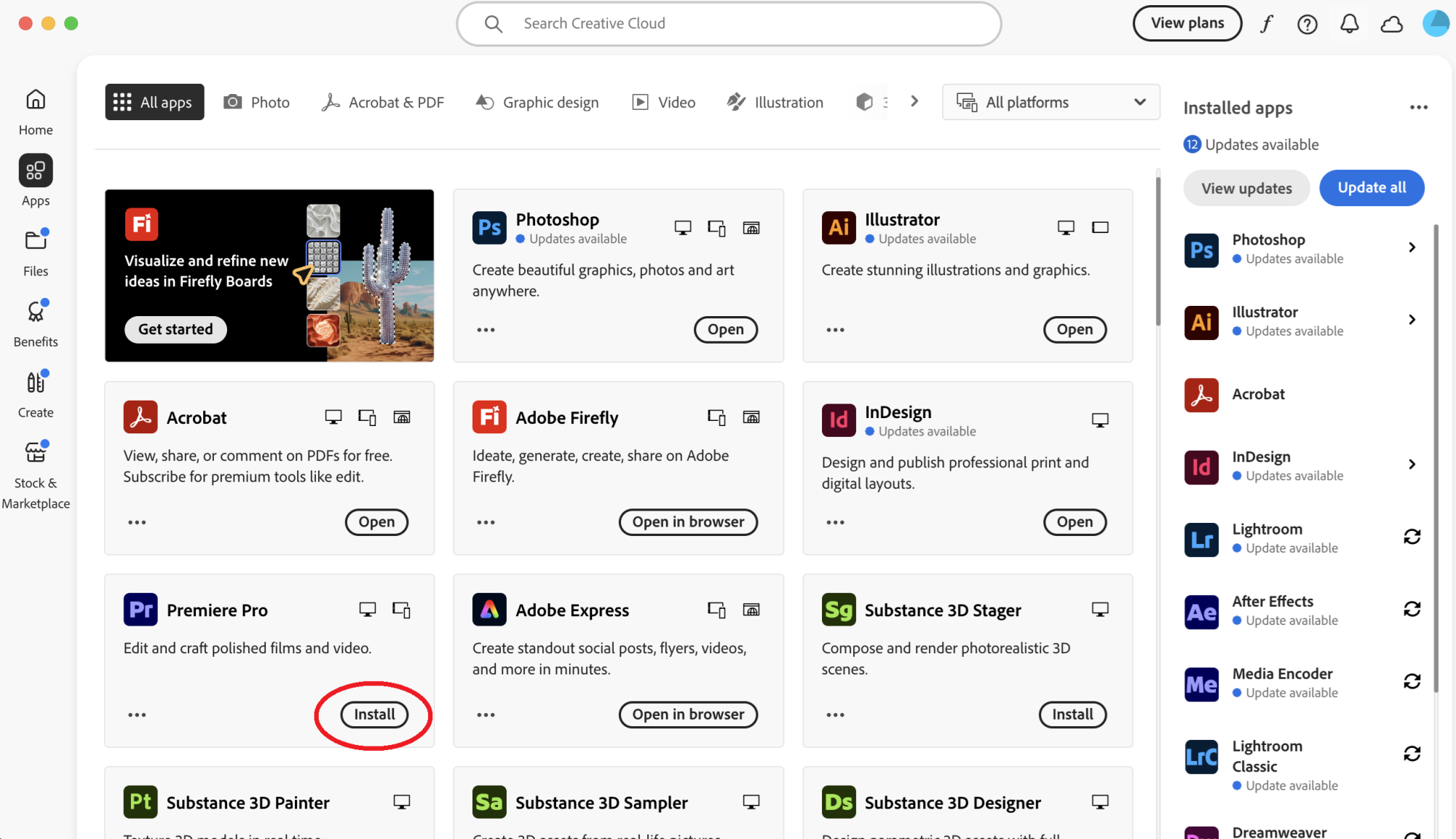
2. Select the application you want to install. Click “Install” to begin the installation.
3. Please wait until the installation is complete.
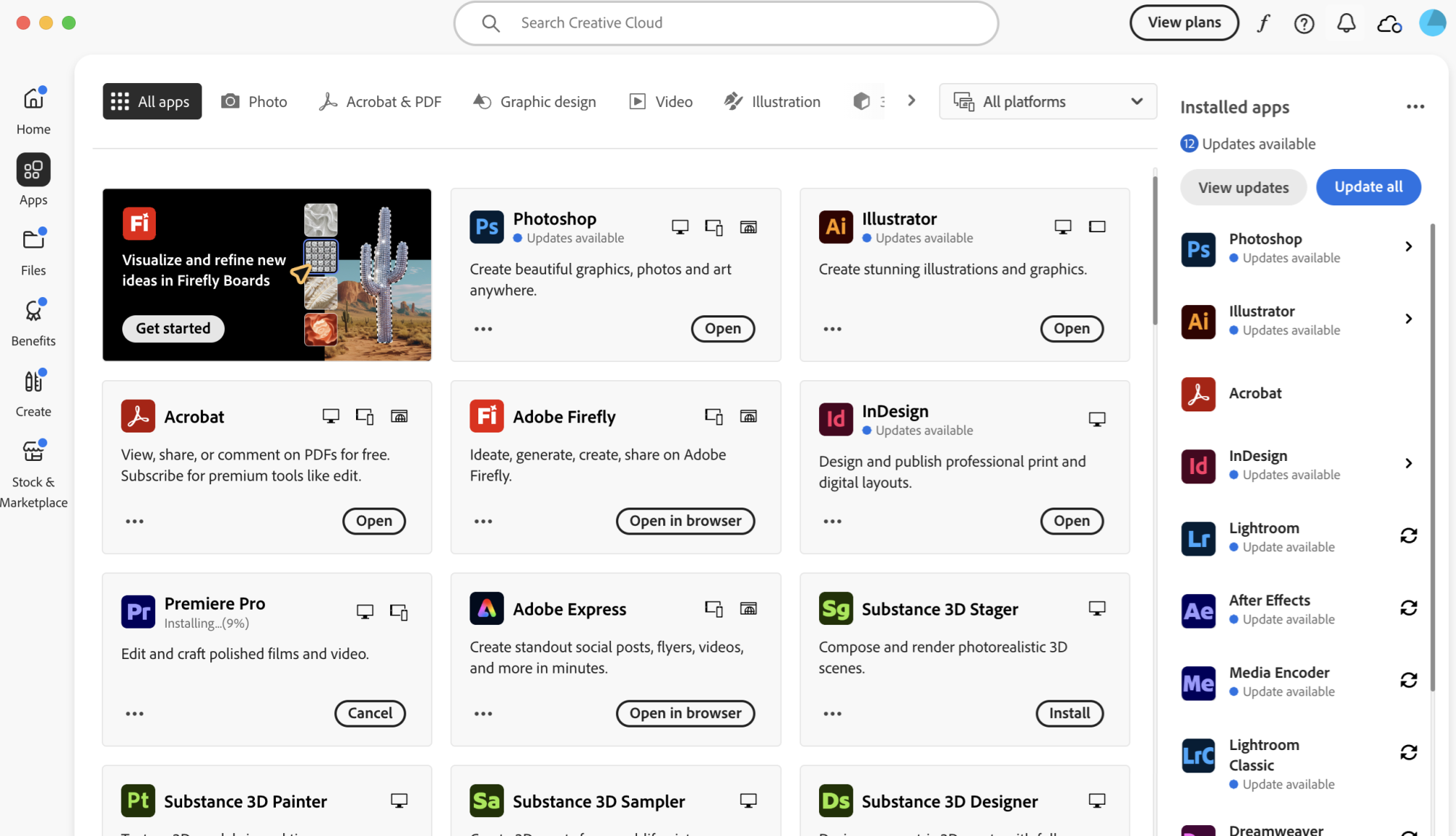
Each application requires several gigabytes of storage, so installation may take some time depending on your internet connection. Please install the software only when you have sufficient time and battery power.
Resources & Materials
(All course materials are available in Japanese.)
*Note: The online learning materials are available only to students of our university. They can be accessed using your university Google account ([student number]@stdt.tamabi.ac.jp).*
You can watch seminar videos introducing and demonstrating how to use each application.
*Note: A separate viewing account is required to watch the videos; it is different from your university account.*
FAQ (Before Use)
Q1: What if I can’t find the “activation” email?
Even without the email, you can set up your account by going to the Adobe login page — enter your university email address. Then choose “Company or School Account” (not “Personal Account”). Do not use the “Login with Google” button.
Q2. What if I forgot my password?
You can reset it via the Adobe login page.
*Note: The new password must meet complexity requirements (8+ characters, include uppercase, lowercase, numbers, symbols, and avoid previous passwords).*
Q3. After login I see only a “trial version” / free account displayed — why?
Please sign out on the computer you are using. Make sure to log out of all Adobe sessions, including the Creative Cloud desktop app and any web browsers (such as Google Chrome or Safari).
After signing out, please log in from the Creative Cloud desktop app.
If you see an account selection screen during login, choose “Company or School Account.”
If you select “Personal Account,” your access will be treated as a free account, and the apps will appear as trial versions.
Also note that logging in via the “Sign in with Google” button will be treated as using a “Personal Account,” so please avoid using that option.
Please be aware that on university computers (Media Center Computer Studio and departmental computer rooms), Adobe apps can be used even under a Personal Account.
However, cloud storage is treated as a completely separate account from the Company or School Account, so please take care when saving or managing your files.
Q4. A credit card registration screen appeared / I was charged unexpectedly
With the account provided by the university, you will never be charged, nor will you be asked to register any credit card information.
For information about logging in with your university account, please also refer to Q3.
If you have already made a payment, please contact the support desk below for a refund.
If the issue is not resolved, please consult the Media Center Office.
■ Adobe Customer Support for Individual Plans
+81-120-907-512
(Toll-free within Japan)
When prompted by the automated voice guidance, please select “1.”
The operator will assist you in Japanese.
FAQ (During Use)
Q5. I want to use it on a tablet or smartphone
You can use the mobile apps with the same account as your desktop version, but full functionality is only available on a desktop (Windows or macOS).
Mobile apps for tablets, Chromebooks, or smartphones have limited functionality compared to the desktop versions.
After installing the individual apps from the app store, you can use them by logging in when launching the app.
Even if you are using the desktop version on a computer, the mobile apps are available for your account.
Q6. I want to switch to a different computer
If you can still access your old computer, please log out of your account while connected to the internet.
Then, log in on your new computer and install the apps.
If your old computer is not operable due to malfunction or other reasons, you can log out when logging in on the new computer.

Q7. I want to use multiple computers (personal / university computers)
Your account allows simultaneous login on up to 2 devices, but you can switch devices by logging out.
For a third device or more, please log in each time you switch.
Once installed, the apps remain usable on each computer.
*Note: Only one device can actively use the app at a time.*
*Note: University computer labs (Media Center PCs / departmental labs) have special rules and do not count toward the simultaneous login limit. Free accounts can also use the apps there.*
Q8. What happens after graduation or entering graduate school
When you graduate or leave the university, your account will be deleted and access will be revoked.
Please back up any data from your cloud storage as needed.
If you wish to continue using Adobe personally, you will need to create a new account.
Reinstallation of apps on your computer is generally not necessary; you can continue using them by logging in with your new account.
When entering graduate school, your student ID changes. A new account will be issued, and your old account will be deleted.
Before graduation, please back up your cloud storage and other data so that deletion will not cause data loss.
When the new account is issued in the new academic year, set your password and continue using Adobe as usual.
FAQ (Other Questions)
Q9. What kind of computer specifications are required?
The required specifications vary depending on your tasks, such as image editing or video editing. Please refer to the page below:
You can also purchase Apple products with a student discount. Since our university does not participate in the Apple on Campus program (institutional discount), only the individual student discount is available.
Q10. What is the difference between a “Company or School Account” and a “Personal Account”?
“Company or School Account”
This is a paid account provided by the university. It allows you to use the full range of Creative Cloud features covered under the university’s license.
You can use this account only while you are enrolled, and it will be deleted after graduation.
“Personal Account”
This is a free account that anyone can create. Unless you delete the account yourself, it remains available even after graduation.
A Personal Account can be created using the same email address as your Company or School Account. In this case, after entering your email address on the login page, you will be prompted to select which account to use.
*Note: Your university email address will eventually lose authentication after graduation unless you change the email address associated with your Personal Account. Please make sure to update your email address.*
Q11. Are research students eligible to use this service?
Because research students are not included in the university’s Adobe license agreement, Adobe applications cannot be used on personal computers under this contract.
However, for use in classes, you can access Adobe applications on campus computers by signing in with a free Adobe account.
Please create your own free Adobe account and use it when working on campus.
Q12. Why can’t I purchase an Adobe Stock subscription or individual assets?
The university’s “Company or School Account” does not include an Adobe Stock subscription, and therefore paid Adobe Stock features cannot be used.
In addition, individual payments cannot be made using the university account.
If you wish to purchase Adobe Stock assets or a subscription, please use your personal Adobe account, not your “Company or School Account.”
Please note that Adobe Stock does not offer student discounts. The cost will be the same regardless of whether you use your university email address or a different email address.
If you are unsure about what a “personal account” is, please refer to Q10.
Q13. Why can’t I use video generation in Adobe Firefly or change the generation engine in certain apps/services?
In the “Company or School Account,” the university does not provide access to video generation features in Adobe Firefly or generation engine options such as Nano Banana Pro and other models.
These paid features are not included in the campus license.
If you wish to use these functions, please sign in with your personal Adobe account and purchase an individual subscription plan.
Q14. Are there any other useful Q&A resources?
The following pages may be helpful:
Learn how to download and install Creative Cloud applications.
In addition, if you would like to learn more about the features of each application, Adobe provides online learning materials that you can use:
Adobe Online Learning Materials: “Digital Creative Online Course”
*Note: Online learning materials are available only in Japanese.*
Contact Us
As our support staff are unable to provide assistance in English, we may not be able to offer full support.
Media Center Office
Contact Form
The above pages are available only in Japanese. However, a Media Center guidebook with information in English is also available.